We have all been there. You open a professional email in Outlook 365, expecting a clean message, but instead, you are greeted by a mess of strange characters like “”, “=20”, or those annoying question marks inside black diamonds. It’s frustrating because it makes the email look unprofessional and, frankly, quite hard to read.
Most people think they did something wrong or that the sender made a typo, but the truth is usually hidden in the technical “behind-the-scenes” of how emails are coded. This issue is essentially a “lost in translation” moment between two different email servers. In this guide, I want to walk you through exactly why these symbols appear and, more importantly, how you can fix your Outlook 365 settings to make sure your inbox stays clean and readable.
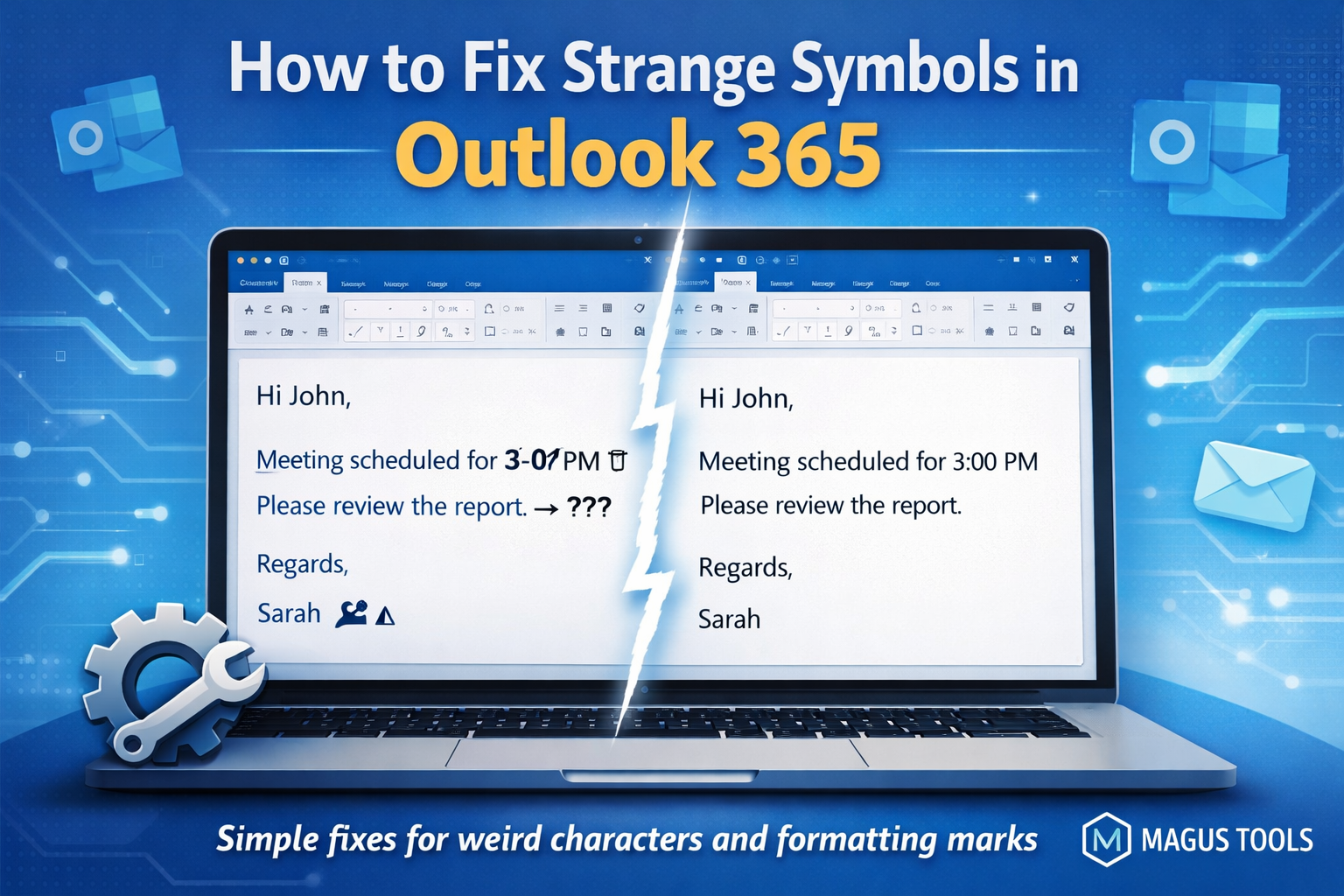
The Root Cause: Understanding Character Encoding
At the heart of this problem is something called “Character Encoding.” Think of it as the language your computer uses to turn digital bits into the letters you see on your screen. The gold standard today is UTF-8, which can handle almost any symbol. However, when a sender uses one encoding (like Western European) and your Outlook is set to another, the software gets confused. It sees a special character—like an accent or a long dash—and doesn’t know how to render it, so it places a random symbol there instead.
How to Fix the Symbol Issue in Outlook 365
Fixing this isn’t as hard as it looks. First, we need to check your “International Options.” Navigate to File > Options > Advanced. Scroll down until you find the International options section. Here, make sure the box for “Automatically select encoding for outgoing messages” is checked. Also, set the preferred encoding for outgoing messages to UTF-8. This is the most universal format and usually stops the “symbol mess” before it even starts.
If the problem persists in incoming emails, you can try to change the encoding for a specific message. Open the email in its own window, go to the Move group in the ribbon, click Actions > Other Actions > Encoding, and try switching to UTF-8 or Western European (Windows) to see if the symbols disappear.
Common Strange Symbols and Their Meanings
To truly understand how to get rid of symbols in Outlook email 365, it helps to recognize what you are looking at. Not all “strange characters” are the same. For example, if you see “=20” or “=0D”, you are likely dealing with something called “Quoted-Printable” encoding. This happens when an email system tries to make sure a message doesn’t have lines that are too long, but the receiving server fails to decode it back into normal spaces or line breaks.
Another common sight is the “” symbol appearing before a space or a currency sign. This is a classic symptom of a UTF-8 message being read as Western European (ISO-8859-1). The computer sees the first part of a two-byte character and assumes it’s a standalone “”. By identifying these specific patterns, you can often pinpoint exactly which server in the communication chain is misconfigured. While adjusting your local Outlook settings is the first step, knowing these patterns helps you explain the issue to your IT department or the sender if the problem persists.
When Manual Fixes Aren’t Enough: Professional Migration
Sometimes, these symbol issues aren’t just a setting error; they happen during a messy email migration. If you are moving large amounts of data between platforms, symbols often get corrupted. This is where professional tools like those from MagusTools become essential.
For businesses looking for a permanent solution, the MagusTools Email Migration software ensures that metadata and character encoding remain intact during the transfer. Instead of manually fixing thousands of broken emails, using a dedicated “problem solver” tool prevents the issue from happening in the first place, keeping your communication professional and error-free.
Frequently Asked Questions (FAQ)
Why do symbols only appear in some emails and not others?
This usually depends on the sender’s email client. If they are using an older version of a mail app or a webmail service with outdated standards, their “handshake” with Outlook 365 might fail, resulting in encoding errors.
Can a virus cause strange symbols in Outlook?
While most symbols are just encoding errors, occasionally, corrupted data from a malicious attachment can appear as gibberish text. However, if the symbols appear in the middle of a regular sentence, it is almost certainly a formatting issue, not a security threat.
Does Magus Tools fix symbols in existing emails?
While manual settings fix your view in Outlook, Magus Tools software is designed to prevent these issues during the migration process. It ensures that when you move your archive to a new platform, the original encoding is preserved so you never have to see these symbols again. Also, the tools like Magus OST to PST converter can help to back the complete Outlook data ensuring zero risk of data loss while migration.
- Conclusion
Dealing with strange symbols in Outlook 365 is a common but fixable headache. By aligning your encoding settings to UTF-8 and knowing when to use professional migration tools, you can ensure your emails always look exactly how they were intended.

Emily
I'm a content writer with a solid understanding of software and technical topics, which allows me to break down complex concepts into clear, engaging content. I enjoy creating articles, guides and documentation that connect with both tech-savvy readers and those new to the subject